Start up Outlook Express.
Open the e-mail message (of which you want to view the properties) by double-clicking on the message.
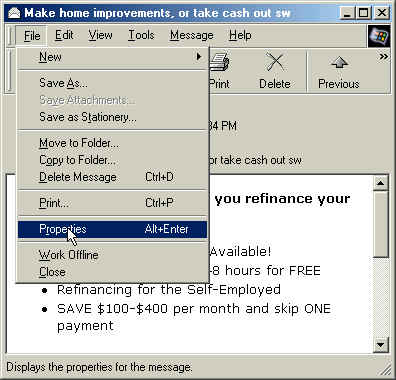
Click on File on the menu bar of the opened message. Then click on Properties. (See "Image #1")
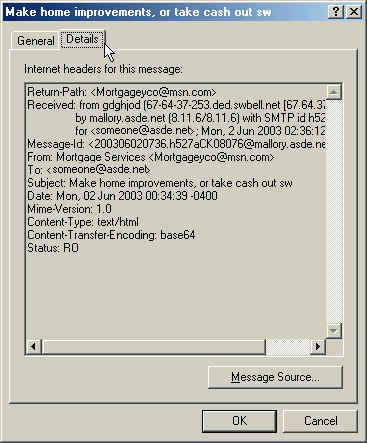
Click on the Details tab in the window that opened. (See "Image #2")
All of the properties of the e-mail you received are shown in that window. If requested to forward that information to someone, you will need to "copy and paste" that information into another e-mail message. Go to step "6" below for instruction on how to do that.
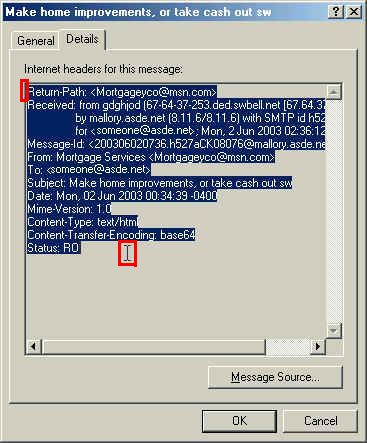
To "copy" the properties, you must first highlight them. To highlight them, place your mouse cursor just to the left of the R in "Return-Path" as indicated by the upper left red box in "Image #3"
Then click down the left mouse button and while holding it down, drag the mouse to the end of the properties (as seen in the lower right red box in "Image #3") so that they are highlighted. After the entire contents of the properties are highlighted, you can release the mouse button.
To "copy" the highlighted text, press and hold down the "Ctrl" key on the keyboard and then press the "C" key on the keyboard once. This will copy the text to the Windows clipboard.
Now you are ready to paste the copied text to a new e-mail message.
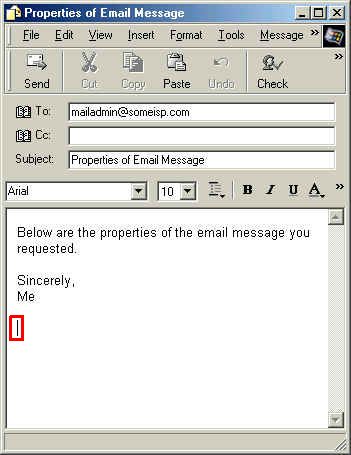
Start a new e-mail message as you normally would. Place a couple of spaces after your message and leave the cursor at that point (as indicated by the red box in "Image #4")
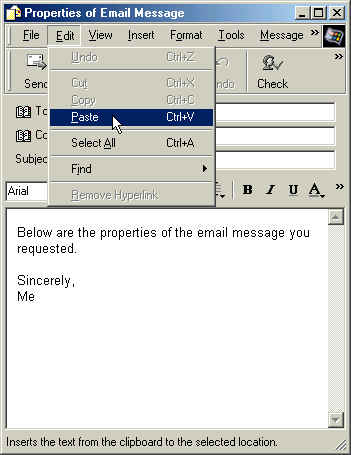
Click on Edit on the menu bar and then click on Paste. (See "Image #5")
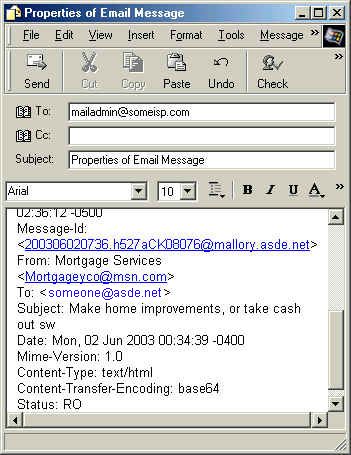
The properties of the e-mail message that you copied earlier are now displayed in the e-mail message you just created. (See "Image #6")
You can now send the e-mail message.