Start up Mail by clicking on the icon (See "Image #1").
IMAGE #1 
From the Mail menu, choose "Preferences". (See "Image #2")
IMAGE #2 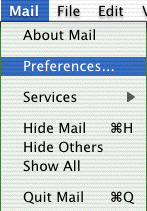
Click the "Create Account" button. (See "Image #3")
IMAGE #3 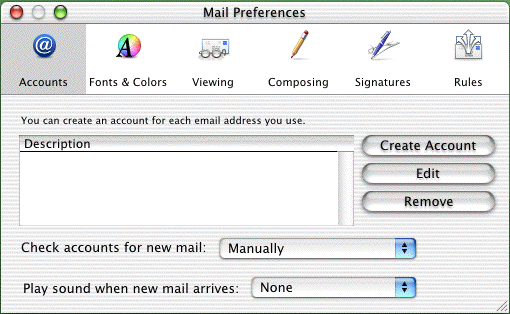
Click the arrow box on the "Account Type" pop-up list and choose "POP Account". (See "Image #4")
In the "Description" field, type your full ASDE email address (e.g., username@asde.net). (See "Image #4")
In the "Email Adress" field, type your full ASDE email address (e.g., username@asde.net). (See "Image #4")
In the "Full Name" field, type your name. (See "Image #4")
In the "Host name" field, type mail.asde.net (See "Image #4")
In the "User name" field, type your full ASDE email address (e.g., username@asde.net). (See "Image #4")
In the "Password" field, type your password. (See "Image #4")
Note: The user name and password are to be lower case only. Make sure that Caps Lock is OFF!
In the "SMTP Host" field, type mail.asde.net (See "Image #4")
Leave the box next to "Use authentication when sending mail" unchecked. (See "Image #4")
Leave the "SMTP User" field empty. (See "Image #4")
Leave the "SMTP Password" field empty. (See "Image #4")
IMAGE #4 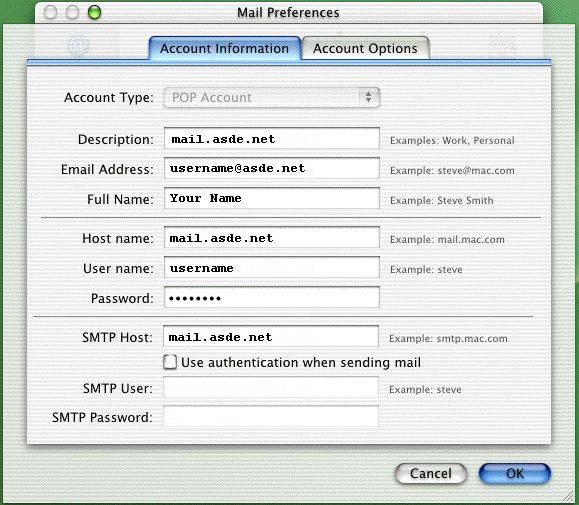
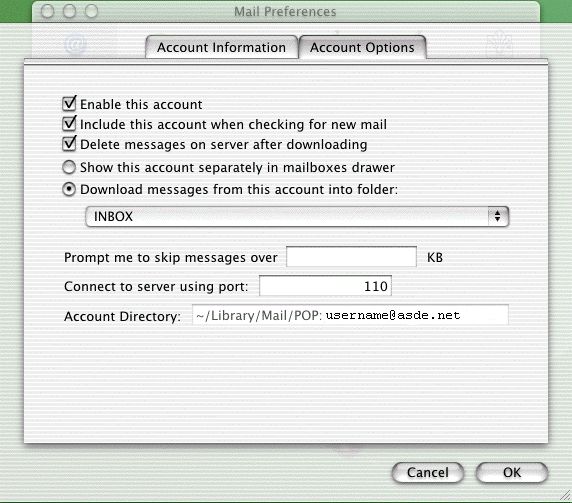
Click on the "Account Options" tab. (See "Image #5")
Check the box next to "Delete messages on server after downloading". (See "Image #5")
Click the "OK" button. (See "Image #5")
IMAGE #5