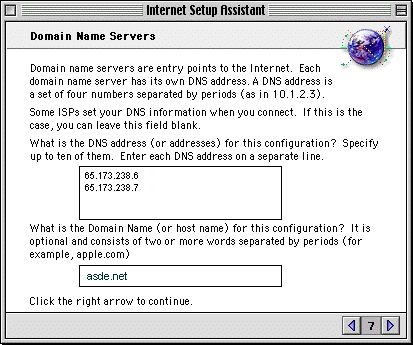
65.173.238.6
65.173.238.7
Enter asde.net for the Domain Name, then go to the next screen.
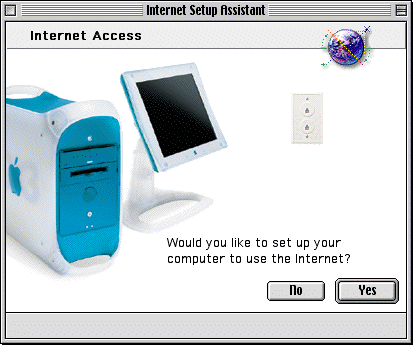
| 1. Open the Internet Setup Assistant (ISA) by clicking on the Apple Menu, going to "Internet Access" and choosing "Internet Setup Assistant". Click on "Yes" when asked if you would like to set up your computer on the internet. |
|
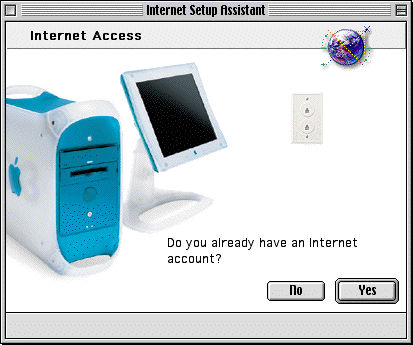
| 2. Click "Yes" to indicating you already have an internet account. |
|
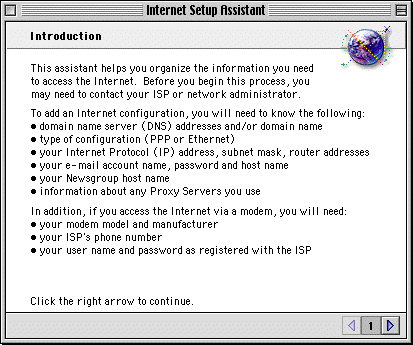
| 3. This screen lists the information you will need to connect. Click on the little blue arrow to go to the next screen. |
|
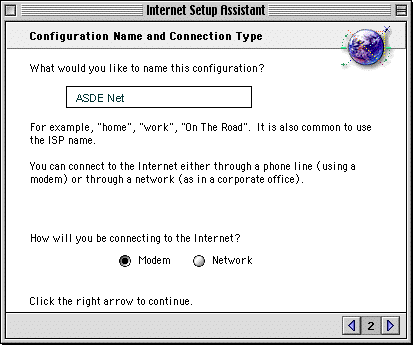
| 4. Enter "ASDE Internet" as the name of your configuration (as shown in the image to the right.) Click in the circle next to "Modem" so that a black dot is placed in it. Then click the little blue arrow to go to the next screen. |
|
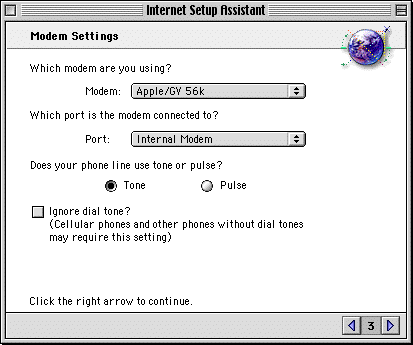
| 5. Check the answers on this screen. You probably have the Apple/GV 56K modem. If you don't have that modem, select the modem you do have by clicking on the up/down arrows to the right of where it is displayed. The rest of the configuration will probably be as shown in the image to the right. If not, make the needed changes. Click on the little blue arrow to go to the next screen. |
|
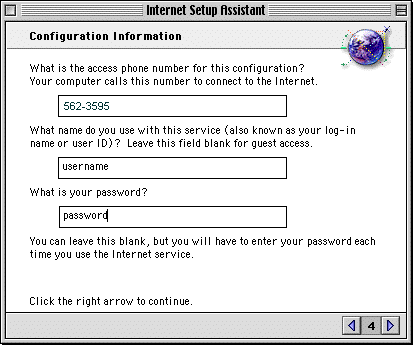
| 6. Enter our telephone number (562-3595) for connecting to the internet. Also, enter the username and password you chose when you signed up with ASDE. (Remember to use all lower case letters.) Click on the little blue arrow to go to the next screen. |
|
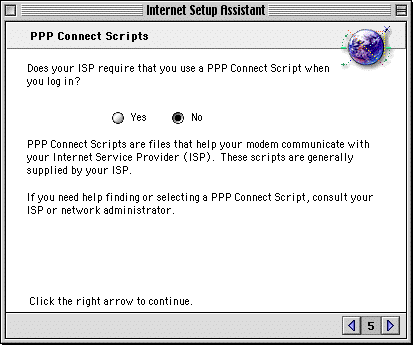
| 7. This screen asks if you need a dialup script. Click "No". Click on the little blue arrow to go to the next screen. |
|
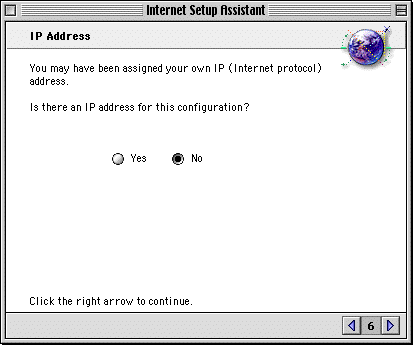
| 8. This screen asks if you have an IP address for this configuration. Click "No". Click on the little blue arrow to go to the next screen. |
|
|
9. Enter the DNS Addresses
65.173.238.6 Enter asde.net for the Domain Name, then go to the next screen. |
|
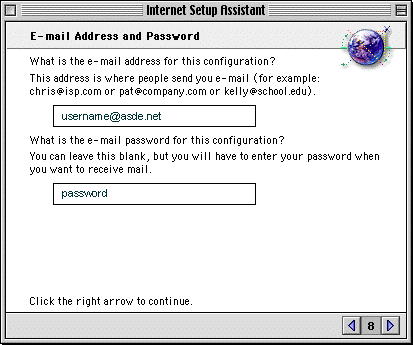
| 10. In this screen you set up your email. Enter your email address and password as shown, then go to the next screen. (REMEMBER to use lower case letters.) |
|
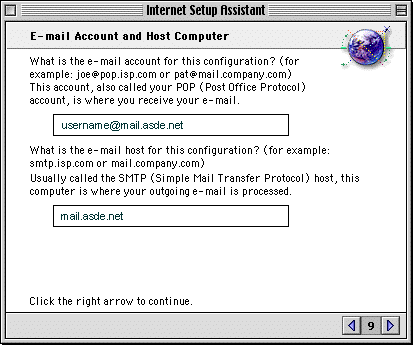
| 11. This is where we configure the email servers. Enter username@mail.asde.net (where "username" is the username you chose) and mail.asde.net in the blank for SMTP server, then go to the next screen. (NOTE: Your actual email address is your username followed by "@asde.net", however on this screen we add the "mail." to identify the mail server.) |
|
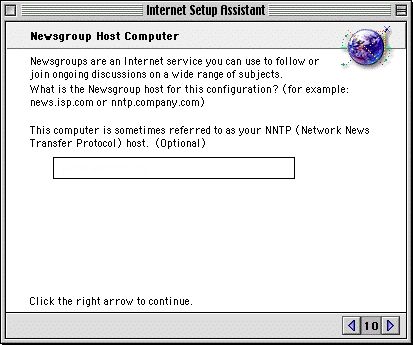
| 12. Leave the "NNTP (Network News Transfer Protocol) box" blank, and then go to the next screen. |
|
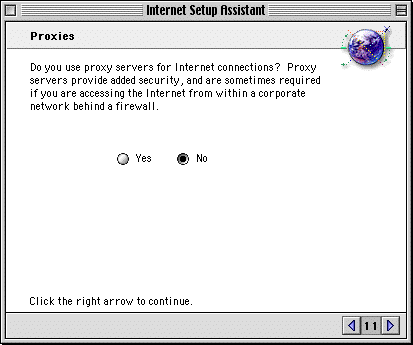
| 13. We do not use a proxy server. Click "No" and then go to the next screen. |
|
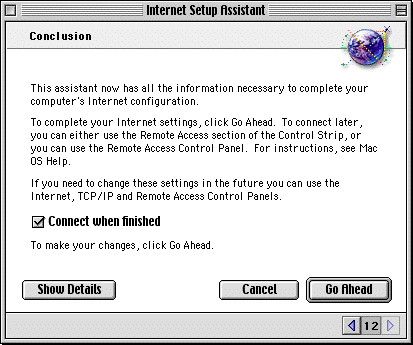
| 14. You are now done setting up your Mac using OS 9. Click "Go Ahead" to finish the connection wizard. |
|