This will instruct you on how to change your email account for "ASDE Net" email. This is the
set up you must have when sending email on the "asde.net" service.
If you wish to check mail sent to your "asde.com" account,
you will need to change these settings back to the "asde.com" settings. DO NOT send mail when you are set up with the
"asde.com" settings. Use it only to check the email.
If you want to reply to a message sent to your "asde.com" account, you will not be able to do so by clicking on the
"Reply To" button in your software. Since you can send mail only through your "asde.net" account, you will have to reply by creating a new
message. Of course, you can reply to messages sent to your "asde.net" account by using the "Reply To" option in your email software.
Start up Netscape Navigator.
Click on "Options" on the menu bar and then on "Mail and News Preferences". (See Image #1)
Click on the Servers tab. Type mail.asde.net in both the "Outgoing Mail" and "Incoming Mail" server boxes. (See Image #2)
Type news.earthlink.net in the "News (NNTP) Server" box. (See Image #2 again.)
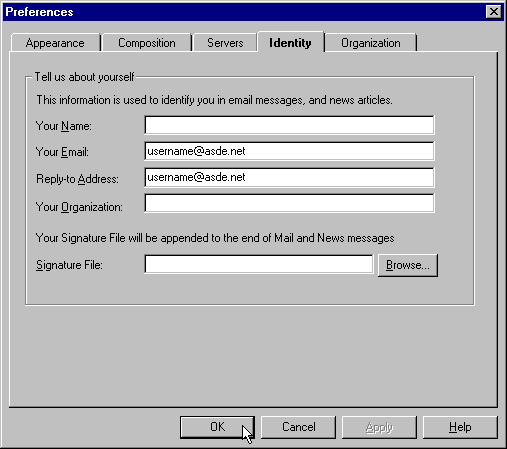
Click on the Servers tab. Type your new email address in the "Your Email" and "Reply-To-Address" boxes. Remember to use asde.net in the address. Then click on OK at the bottom of the page. (See Image #3)
Netscape is now set up for "asde.net" email. Don't forget to change your dial-up connection to "asde.net" if you haven't already done so.
|
IMAGE #1 (Below)
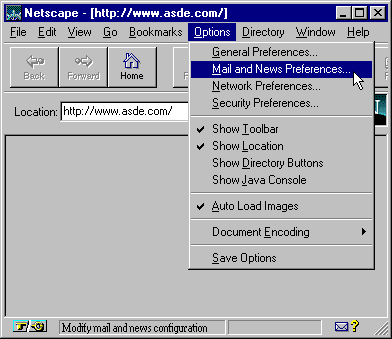 IMAGE #2 (Below)
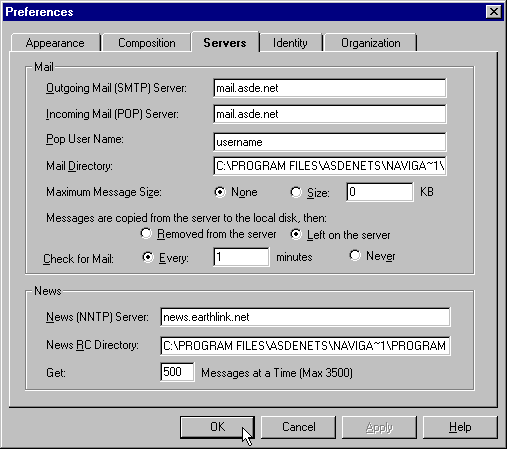 IMAGE #3 (Below)
|
|
|