-
Connect to ASDE Net if you are not already connected. (You must be connected in order to transfer files to the server.)
-
Start up the WS_FTP program.
-
The Session Profile window will be displayed. (See "Image #1" below.)
-
If you are setting up WS_FTP for the first time, click on New.
-
Type www.asde.net for the Host Name if it is not already displayed.
-
Leave Automatic Detect for the Host Type.
-
Type in your username in the User ID box.
-
Type in your password in the Password box.
-
If you do not want to be required to type in your password everytime you run this program, then put a check mark in the box next to Save Password.
-
Click on OK.
IMAGE #1 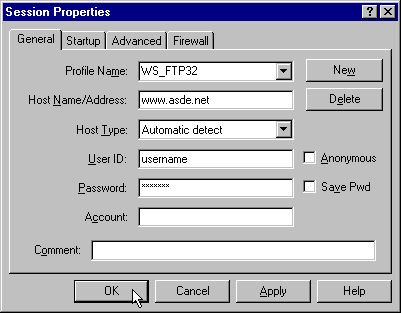
-
You are now connected to the ASDE Net server.
-
The files on your computer are displayed in the left column with the heading Local System. (See "Image #2" below.)
-
The files on the ASDE Net server are displayed in the right column with the heading Remote System. (See "Image #2" below.)
IMAGE #2 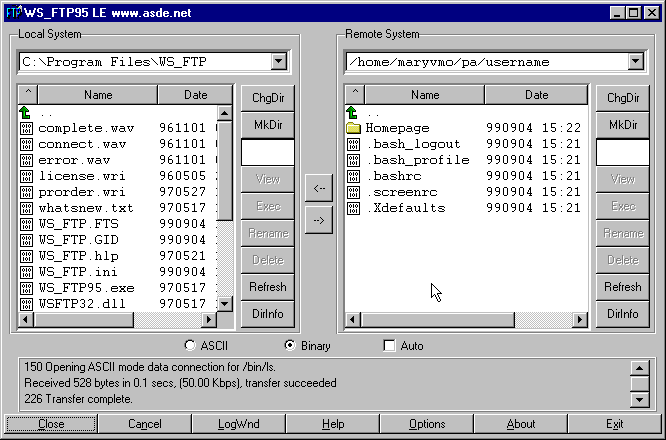
-
All of your homepage files must be transferred inside the Homepage folder on the Remote System. To open the Homepage folder, double-click on the Homepage folder in the right ("Remote System") column. (See "Image #3" below)
IMAGE #3 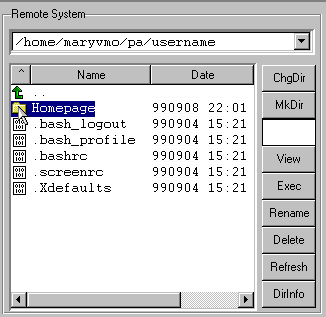
-
In the left ("Local System") column, go to the directory where your homepage files are located.
-
To move up a directory, double-click on the "up" arrow located at the top of the "Local System" column. (See "Image #4" below.)
IMAGE #4 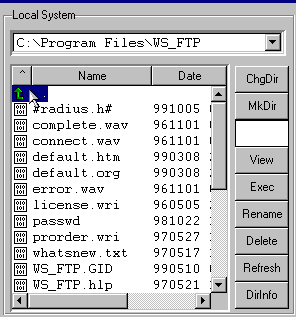
-
After you are in the directory where your homepage files are located, highlight them by clicking on them. (To select more than one file and/or folder, hold down on the "Ctrl" key on your keyboard while clicking on the files (and folders) you want to select.) (See "Image #5" below.)
IMAGE #5 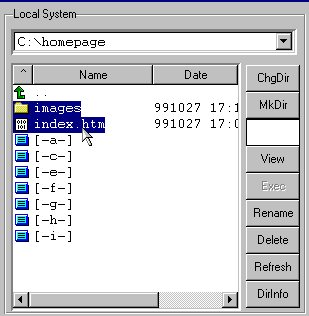
-
After selecting the files in the left column, click on the arrow pointing to the right that is located between the right and left column. (See "Image #6" below.)
IMAGE #6 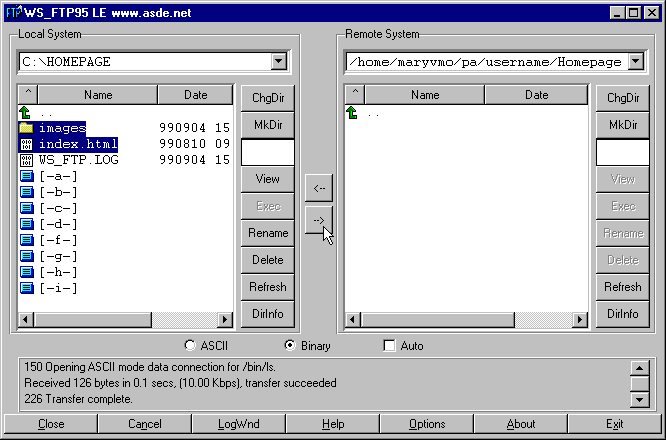
-
The selected files will then be transferred to the server
-
If you selected folders to be transferred, a window will display asking if you "want to transfer the selected directory structures." Click on "Yes". (See "Image #7" below.)
IMAGE #7 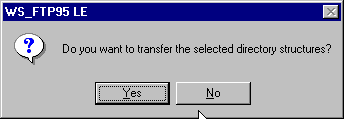
-
The main page for your homepage must be named "index.html" on the ASDE Net server. If it is not named this, click on the file in the "Remote System" column so that it is highlighted. Then click on the "Rename" button. (To demonstrate, let's assume the main page file is named "index.htm". In that case you would click on the "index.htm" file so that it is highlighted and then click on Rename.) (See "Image #8" below.)
IMAGE #8 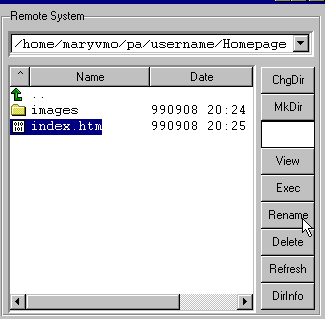
-
In the displayed window, type in "index.html" (without the "" marks) and then click on OK. (See "Image #9" below.)
IMAGE #9 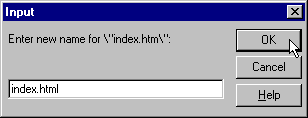
-
This completes the transfer of you webpage files to the ASDE Net server.
-
To view your webpage on the internet, connect to the internet and start your browser of choice. In the URL address box on your browser, type in the address of your webpage. (Your webpage URL is http://www.asde.net/~username (where "username" is your username on ASDE's system.) (See "Image #10" below.)
IMAGE #10 
TRANSFERRING WEB PAGE FILES USING WS_FTP