INSTRUCTIONS FOR POSTING PICTURES FOR VIEWING IN EBAY AUCTIONS, ETC.
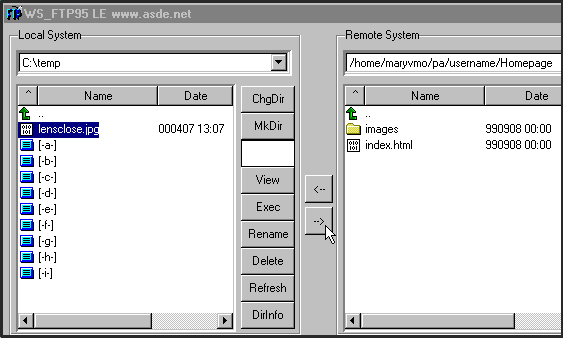
Transfer your picture files to your "Homepage" directory using the FTP program of your choice. (See "Image #1" below.) (Once again, the images shown are from the "WS_FTP" software.)
The pictures may be placed directly in the "Homepage" folder or inside a sub folder inside the "Homepage" folder. In this example, it is placed directly in the "Homepage" folder. (See "Image #1" below.)
It is important that you know the exact spelling of the file name, including any capital letters.
After you have transferred all of your picture files to the server, close down the FTP software.
Start up your internet browser software. (The images show below were made using Microsoft's Internet Explorer software.)
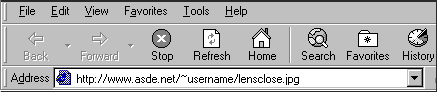
Click in the address bar of the browser software and type in your webpage address, followed by a forward slash (/) and the name of one of the picture files in your homepage directory. This is the URL for displaying this image. (REMEMBER, the file name must be spelled exactly the same as you noted when transferring the files.) (See "Image #2" below.)
Press the "Enter" key on your keyboard.
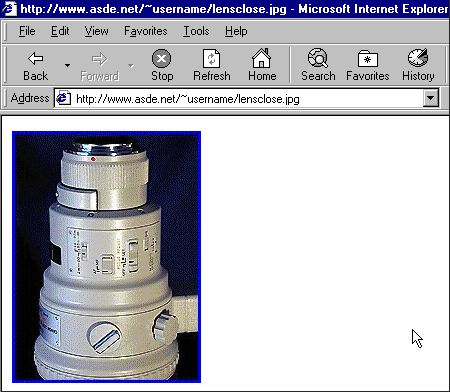
Your picture will now be displayed on your browser. (See "Image #3" below.)