Start up Outlook Express.
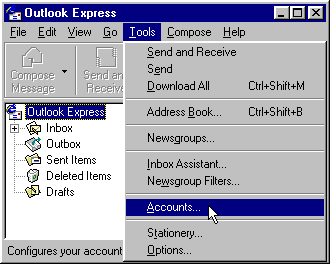
Click on Tools on the menu bar. Then click on Accounts (See "Image #1")
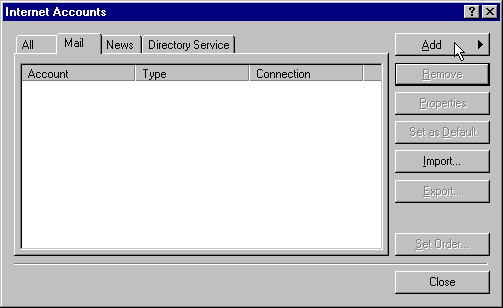
Click on the Mail tab.
Click on Add and then Mail. (See "Image #2")
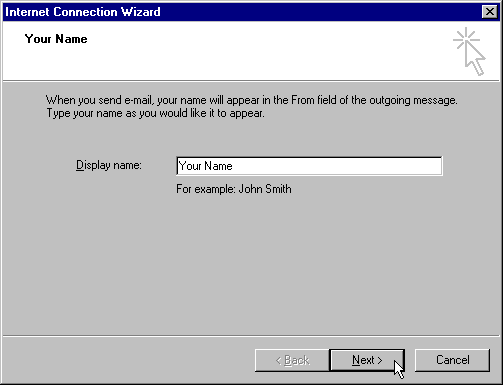
In the box to the right of Display name, type in your actual name (e.g., John Public). Then click on Next. (See "Image #3")
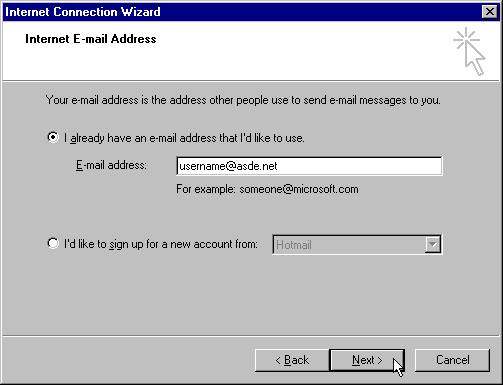
Enter your email address in the space provided (e.g., username@asde.net). (See "Image #4") (Remember to use the extension ".net" instead of ".com") Click on Next.
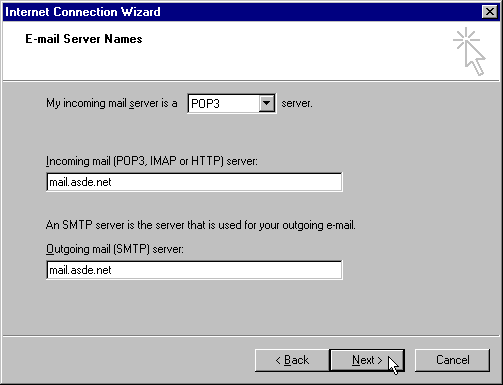
For the Email Server Names, type in mail.asde.net for both the Incoming Mail and Outgoing Mail servers. (See "Image #5") (Remember to use the extension ".net" instead of ".com") Click on Next.
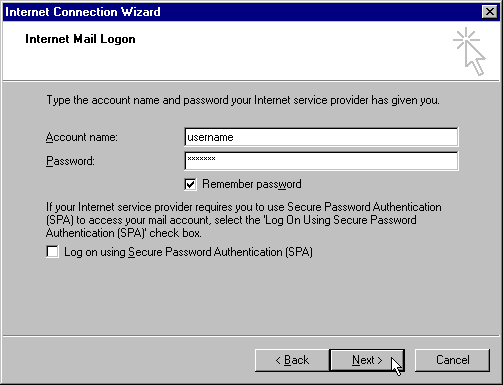
At the Internet Mail Logon window, type in your Account Name and Password (optional). (See "Image #6") Click on Next.
The window "congratulating" you will be displayed. Click on Finish.
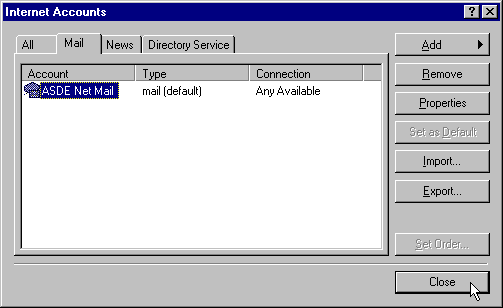
You now need to edit the "Properties" for this new account. To do this, highlight the mail.asde.net account which appears in the account column of the Mail tab. Then click on the Properties box on the right side of the window. (See "Image #7")
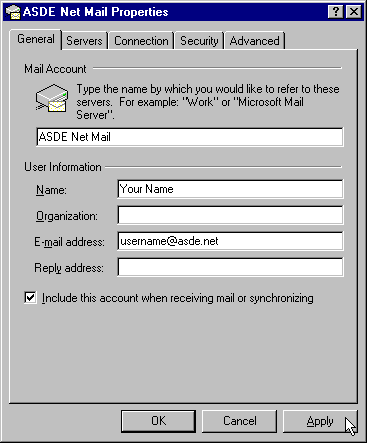
Select the General tab on the displayed window. (See "Image #8") Click in the long white box in the Mail Account section where mail.asde.net is displayed replace it with ASDE Net Mail. Click on Apply and then OK.
Click on the account ASDE Net Mail and then click on "Set as default". (It may already be set as default.) (See "Image #9") Click on Close.