Start up Outlook Express.
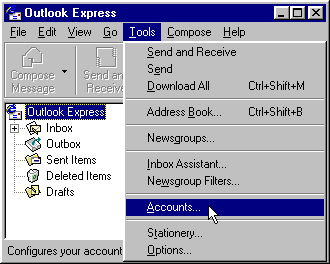
Click on Tools on the menu bar. Then click on Accounts (See "Image #1")
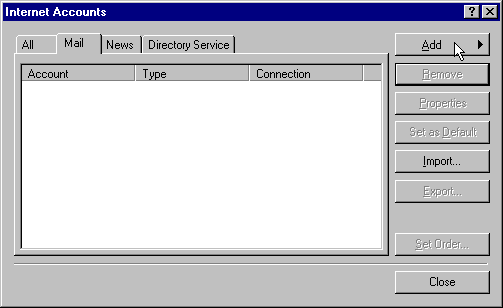
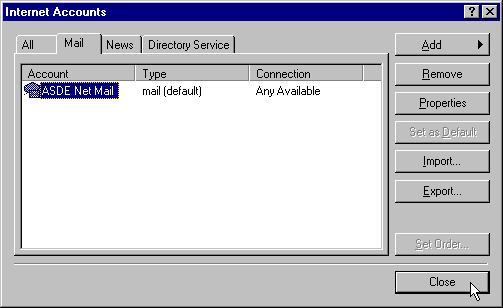
Click on the Mail tab. (See "Image #2")
NOTE: You may not need to do this step (#4). If you are removing an existing account, click on the account name and then click on Remove in the right side of the window.
Click on Add and then Mail. (See "Image #2")
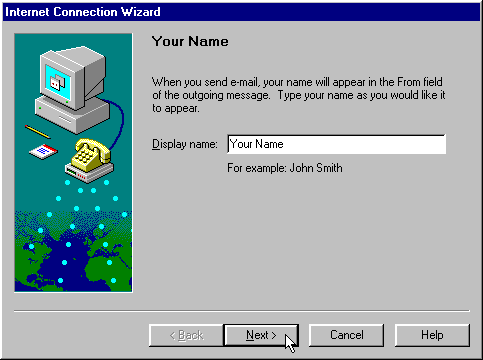
In the box to the right of Display name, type in your actual name (e.g., John Public). Then click on Next. (See "Image #3")
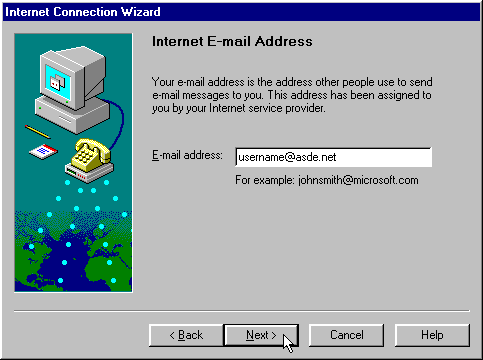
Enter your email address in the space provided (e.g., username@asde.net). (See "Image #4") Remember to use the extension ".net" instead of ".com"
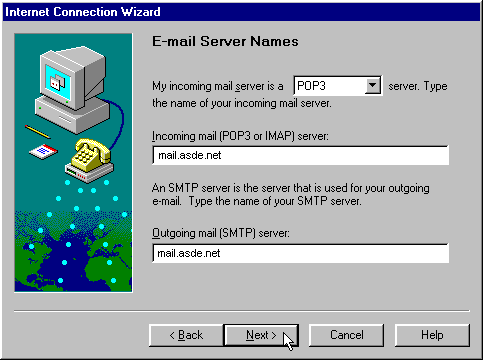
For the Email Server Names, type in mail.asde.net for both the Incoming Mail and Outgoing Mail servers. Click on Next. (See "Image #5") Remember to use the extension ".net" instead of ".com"
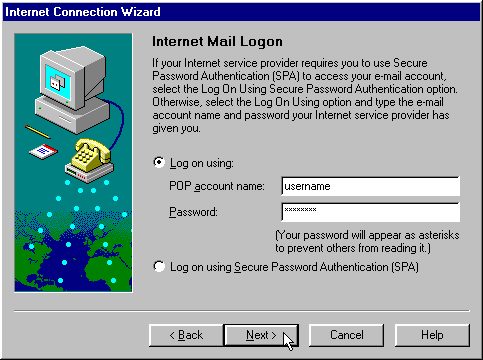
At the Internet Mail Logon window, type in your Account Name and Password (optional). Click on Next. (See "Image #6")
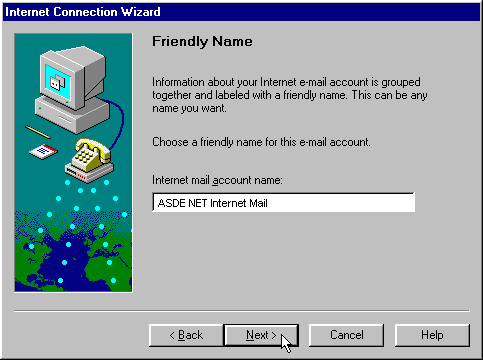
Enter a Friendly Name in the space provided. (See "Image #7") (The "Friendly Name" is the name that identifies your account in Outlook Express and will be displayed in the Account column for Mail Accounts See Image #9). Click on Next.
At the Choose Connection Type window, select "Connect using my phone line". Click on Next.
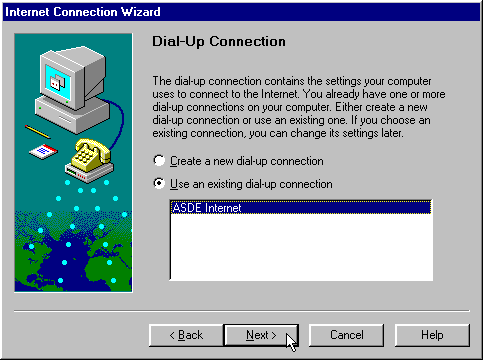
For the Dial-Up Connection, click on "Use an existing dial-up connection". Then click on the dialer that you use to connect to the internet. Click on Next. (See "Image #8")
The window "congratulating" you will be displayed. Click on Finish.
Click on the account you just created and then click on "Set as default". (It may already be set as default.) (See "Image #9") Then click on Close.