Start up Outlook Express.
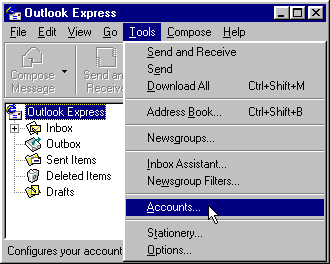
Click on Tools on the menu bar. Then click on Accounts. (See "Image #1")
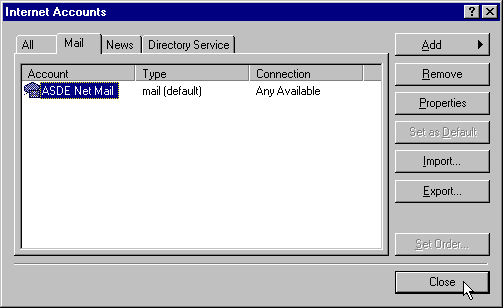
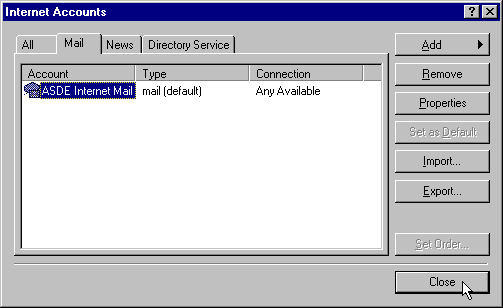
Click on the Mail tab. (See "Image #2")
Make sure your the account for your "ASDE" Email is highlighted in the Accounts column. Then click on the Properties box to the right. (See "Image #2")
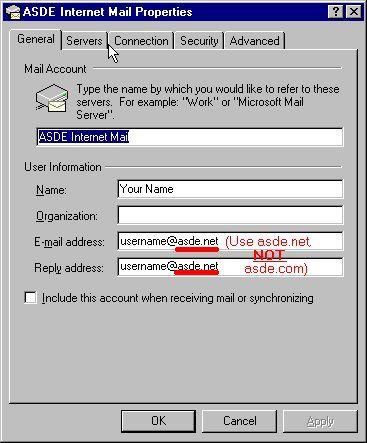
Click on the General tab at the top of the displayed window. (See "Image #3")
In the Email Address box, type in your new email address (e.g., username@asde.net) (See "Image #3")
Click on the Servers tab at the top of the window. (See "Image #3")
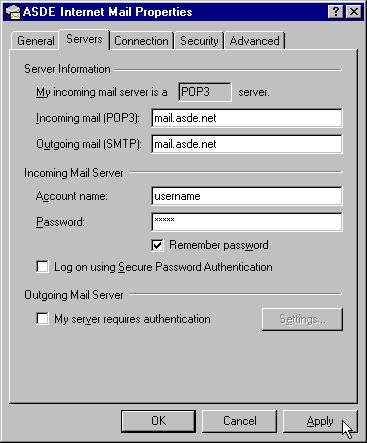
In the Outgoing mail (SMTP) and Incoming mail (POP3) boxes, type mail.asde.net. (See "Image #4")
Click on Apply at the bottom of the window and then click on OK. (See "Image #4")
Click on Close at the bottom of the Accounts window. (See "Image #5")
You should now be able to send and receive email with this account. If you are unable to do so, you may need to completely delete this account and create a new one. You can view the instructions for doing this by clicking:
-
HERE for Outlook Express 4
-
HERE for Outlook Express 5 & 6.
If you have any questions or problems, please call us.